Carriers in the U.S. require two things:
- Brand registration → Proves who you are.
- Campaign registration → Explains what type of messages you'll send.
Important:
Even after your Brand is approved, your Campaign is not created automatically. You must manually submit it yourself. Until you do, your setup is incomplete and your texts will not go through.
Step 1 – Register Your Brand
- Go to Trust Center → A2P Wizard.
- Click Create Brand.
- Enter your legal business details (name, EIN/Tax ID, address, website).
- Submit and wait for approval.
Step 2 – Register Your Campaign (after Brand approval)
- Go back to the A2P Wizard.
- Click Create Campaign.
- Complete the Campaign Details form:
Messaging Use Case
Explain why you're sending SMS and who will get them.
Example: "We send appointment reminders to patients who opt in via our website form."
Use Case Description
A short but clear description of your SMS purpose.
Example: "This campaign sends appointment confirmations and notifications to patients who opted in."
Sample Messages (2 required)
Real examples of the texts you'll send.
How to Write Strong Sample Messages
Your sample messages are critical. Carriers look at them to decide whether your campaign gets approved. If you submit vague or generic ones, you'll likely be rejected.
Rules to Follow:
- Include the recipient's first name.
- Include your business name.
- Identify the sender (staff member or company).
- Always add opt-out instructions (Reply STOP to unsubscribe).
- Don't use placeholders like {{name}} or [Business Name].
📌 Example 1 – Appointment Reminder (Healthcare)
"Hi Sarah, this is Dr. John from Wellness Care Clinic. I'm reminding you about your appointment on Thursday, June 20, at 3 PM. Reply STOP to unsubscribe."
Why it works: Has name, sender, business, exact date/time, and opt-out.
📌 Example 2 – Service Notification (Non-Marketing)
"Hi David, it's Anna from Green Lawn Services. Your lawn care is scheduled for Monday, June 24, at 9 AM. Reply STOP to opt out."
Why it works: Clear service purpose, sender + business, opt-out included.
📌 Example 3 – Marketing / Promotions
"Hi Emily, it's Mark from Fit & Strong Gym. Thanks for subscribing to our updates! This week we're offering 20% off personal training sessions. Reply STOP to unsubscribe."
Why it works: Identifies sender + business, gives reason for receiving the text, includes STOP opt-out.
📌 Example 4 – Event Reminder
"Hello James, this is Bright Future Academy. Don't forget, your child's Science Fair is tomorrow at 10 AM at the school gym. We look forward to seeing you! Reply STOP to unsubscribe."
Why it works: Includes business, event details, and opt-out instructions.
🚫 Common Mistakes to Avoid
❌ "Hey {{name}}, this is {{company}}. Your appointment is tomorrow. Reply STOP to opt out." → Rejected for placeholders.
❌ "Reminder: Appointment at 3 PM." → Too vague, no business name, no opt-out.
❌ "Hi! Don't forget to check our offers." → No sender info, no opt-out, unclear purpose.
Step 3 – Show User Consent
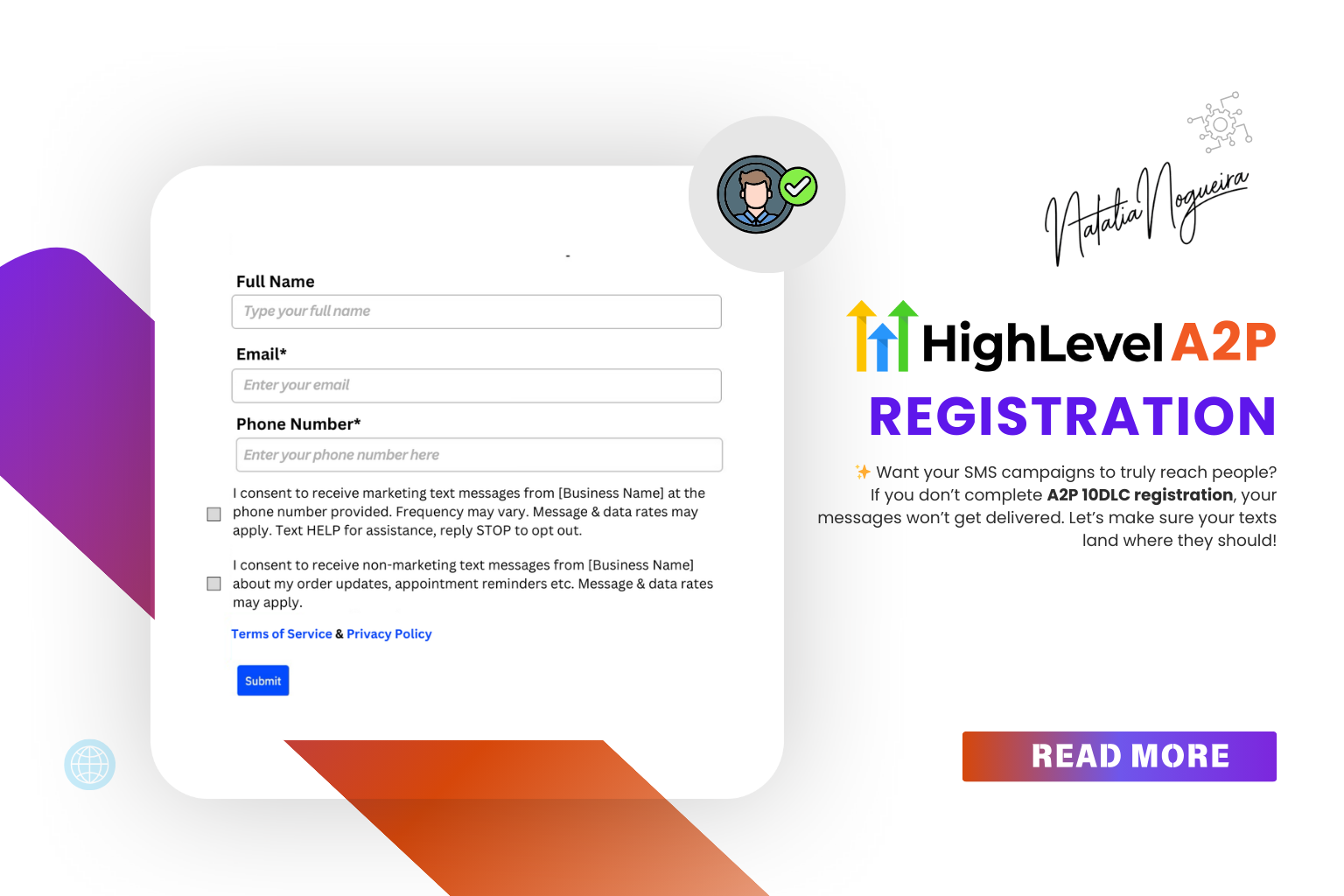
Carriers also require proof that your contacts agreed to receive texts. You can collect consent through:
- Web forms (with optional SMS checkbox)
- Keyword opt-in (like texting START to your number)
- Paper forms or verbal consent (must be documented)
🔑 Key rules:
- Checkboxes must be optional, never pre-checked.
- Consent must explain:
- The type of messages.
- Frequency ("4 messages per month").
- Possible costs ("Message and data rates may apply").
- HELP/STOP instructions.
- Privacy Policy must clearly state you do not sell or share mobile info.
Step 4 – Await Campaign Approval
- Once submitted, your Campaign goes into review.
- You'll pay a one-time $15.75 fee for manual vetting.
- After approval, your number is ready for compliant SMS campaigns.
⚠️ Final Notes
- Without both Brand + Campaign approval, your messages will not be delivered.
- Each Brand can register up to 10 Campaigns per EIN.
- Always use realistic, professional sample messages to avoid rejection.
Once you've followed these steps, you're officially ready to send compliant SMS campaigns that land in inboxes — not in the void.

Natalia Nogueira
Automation Specialist & Business Strategist helping companies streamline operations with smart tech solutions.
Keep Following Along
Want to See More Insights Like This?
Add Natalia Nogueira as a Preferred Source on Google and make it easier to find my latest articles and insights.
Search my name on Google, then tap the three dots next to my result and choose “Add as Preferred Source”. You can remove it anytime.